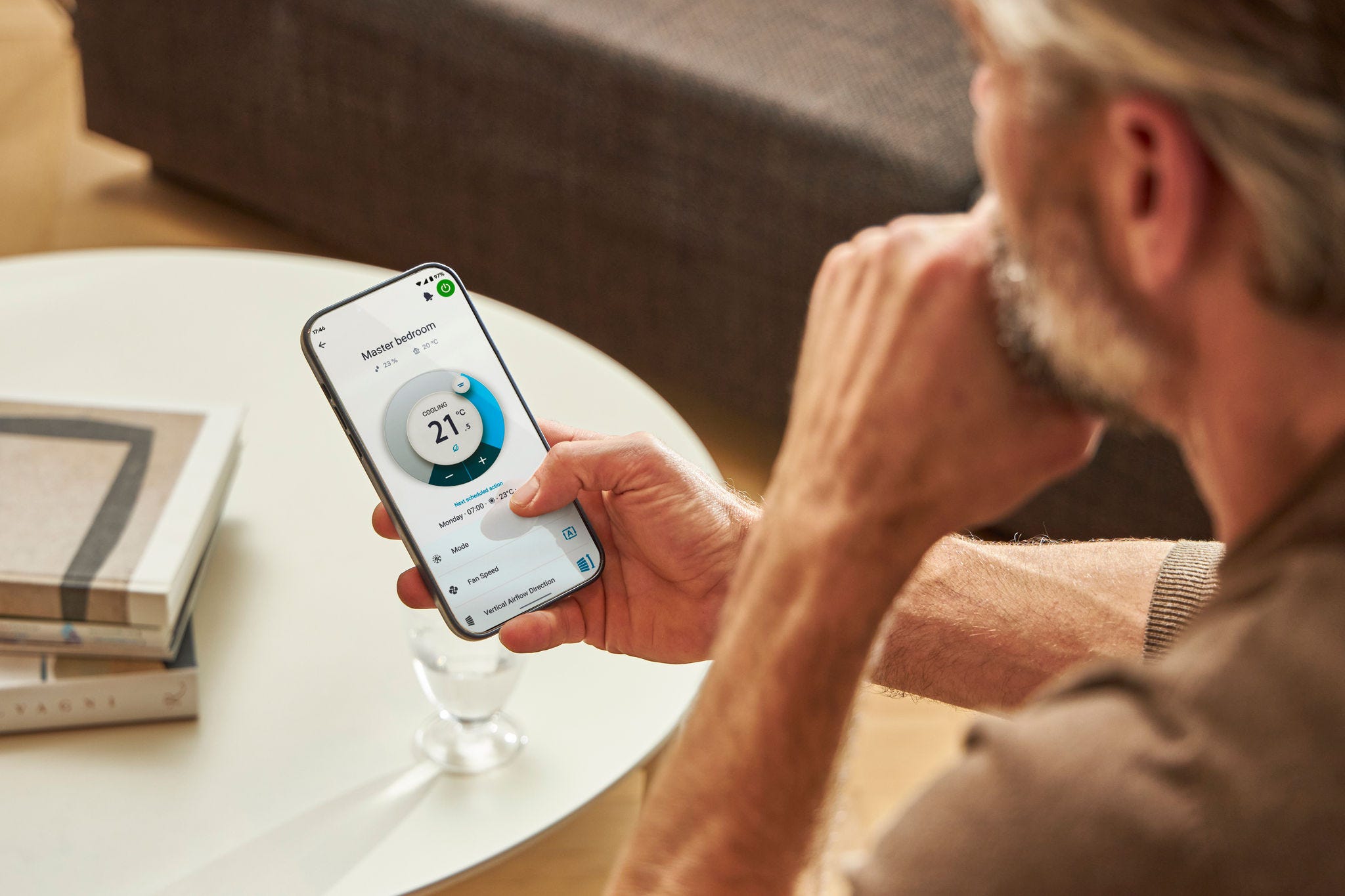
With the Daikin Onecta app, you can control your heating and hot water from your smartphone.
The Daikin Onecta app lets you manage your heating and hot water anytime, anywhere. With a few simple steps, you can connect to your Daikin Altherma heat pump to your home Wi-Fi and enjoy smart control at your fingertips.
What you need to get started
- A smartphone or tablet (Apple or Android)
- Your home Wi-Fi name or SSID and password
- The free Daikin Onecta app
- Your Daikin heat pump with the Wi-Fi adaptor installed
Watch our short video guide
More information
- Open the app and tap Register here if you don’t have an account.
- Fill in your details and confirm your email.
- Once registered, log in to the app.
- The app will ask you to set up a “Home” – this is just the name for your property.
- Choose a clear name (e.g. “Smith Family Home” rather than just “Home”) so it’s easy to recognise later.
- Tap Add your first unit (or the “+” symbol).
- Select your equipment (the app will guide you).
- The app will then help you connect via one of two ways:
- QR Code (newer controls): Simply scan the QR code shown on your heat pump screen.
- Access Point (older controls): The app will guide you to temporarily connect to a Daikin Wi-Fi signal.
- The first time you connect, the app may ask to update your Wi-Fi adaptor’s software.
- This update is automatic. Just follow the on-screen instructions and wait until it restarts.
- The app will prompt you to choose your home Wi-Fi network.
- Enter your Wi-Fi password.
- The app will confirm when your heat pump is online.
Once connected, you can:
- Adjust your heating and hot water temperature
- Set schedules for comfort and savings
- Check energy use insights
- Control your system remotely, even when you’re away
Tips & Troubleshooting
- If you change your broadband or Wi-Fi password, you’ll need to reconnect your system:
- Open the ONECTA app → go to More > Units > Your Heat Pump > Wi-Fi Settings → follow the steps to reconnect.
- If the app shows “Offline,” simply tap the message and follow the prompts to reconnect.
Extra support
If your installer set up the app for you, they may have added you as a user. You’ll receive an invitation by email or QR code. Just accept it to start using ONECTA.
For further help, please contact your installer.